


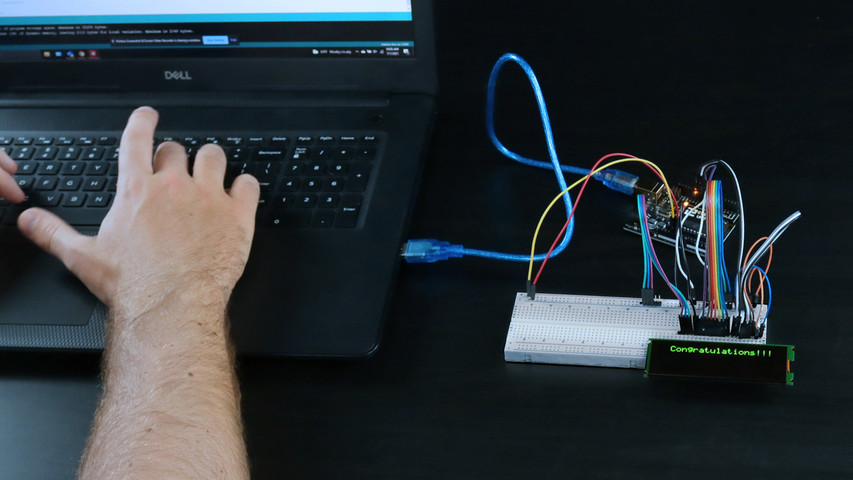
ディスプレイ試作の初心者向けガイド
Aug 27th 2021
In this guide, you’ll learn how to locate example code and upload it to your microcontroller for prototyping with your display. This article is meant to be used as a tutorial using our 4×20 character OLED, but you can apply this guide to all of our displays.
無料のサンプルコードを探すには、2つの場所があります。
- コードライブラリからダウンロードする
- GitHubリポジトリからダウンロード
コードライブラリからサンプルコードを探す
From our website, head to our Support Center to locate hundreds of free example code written by our engineers, designed specifically for our displays. These resources are organized by display type, but feel free to use the search bar to locate a specific part number that you are looking for code on. Here's a quick step-by-step guide to reference:
- 当社ウェブサイトから、サポートセンターをクリックするか、support.newhavendisplay.comにアクセスしてください。
- Example Code」カテゴリボタンをクリックします。
- 表示タイプ別にコードを閲覧し、必要に応じてカテゴリ内のすべての記事を表示し、利用可能なものを拡大することができます
- 必要な品番を探し、記事の中をクリックしてサンプルコードを表示します。
- コードをコピーして、統合開発環境(IDE)に貼り付けます。
- コードを編集し、マイコンにアップロードします。
GitHubとは?
GitHub is a repository for open-source software where users can find code examples for our displays. You’ll find a wide variety of example codes here available for free. Using these codes will help you see the different features and functions our displays are capable of.

GitHubでコードを探す
さあ、はじめましょう以下の手順に従って、GitHub を操作してサンプルコードをアップロードし、表示させます。
| 1.リポジトリ検索」検索バーで、ディスプレイの部品番号を入力し、利用可能なコードを確認します。入力すると、結果が表示されます。当社の4x20スリムキャラクターOLEDの部品番号は、"0420cw "です。 | 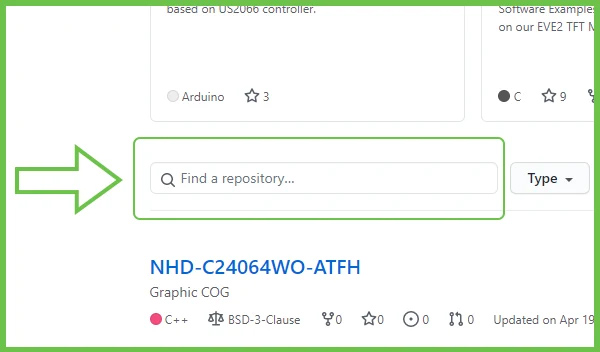 |
| 2.クリックすると、リポジトリが開きます。 | 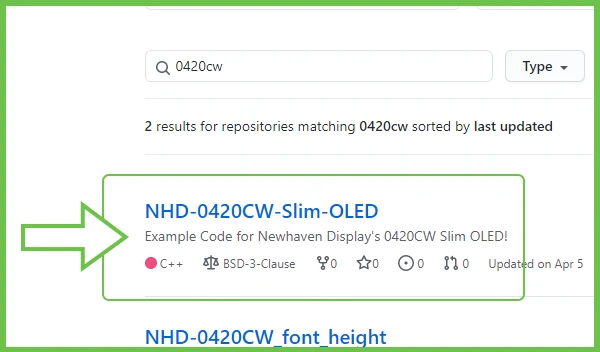 |
| 3.デモコードフォルダを開き、中にある.inoファイルを見つけてください。 | 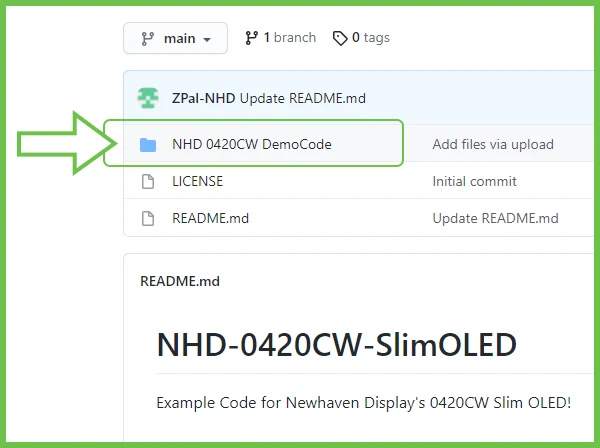 |
| 4..inoファイルをクリックすると、フルコードが展開されます。これで、ページから直接コードをコピーして、IDEに貼り付けることができます。必ず、コードの最初から最後までコピーしてください。 | 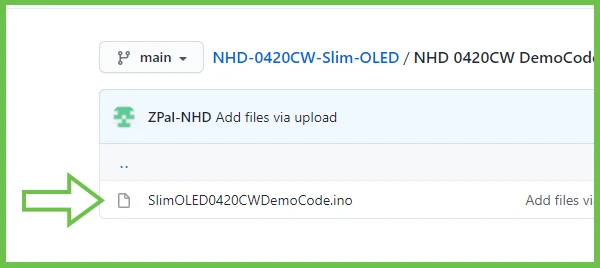 |
Arduinoにコードをアップロードする
| 1.Arduino IDEを起動し、コピーしたコードをプログラムに貼り付けます。 | 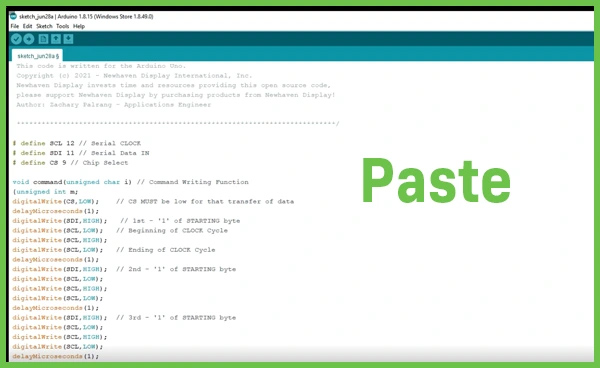 |
| 2.ツールタブを開き、アップロードするArduinoボードとポートが正しく選択されていることを確認します。 | 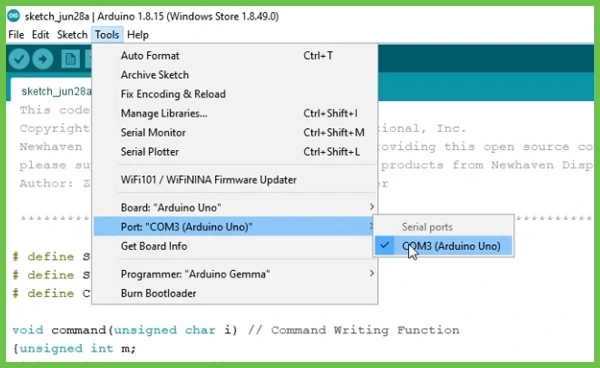 |
| 3.ウィンドウの左上にある矢印ボタンをクリックすると、Arduinoへのアップロードが始まります。 | 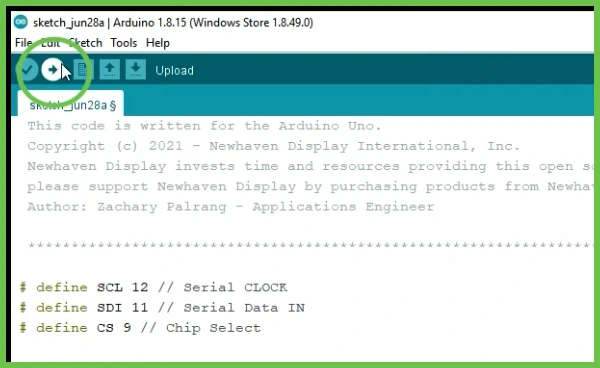 |
コードのアップロードが終了すると、ディスプレイに結果が表示されます。
おめでとうございます。

4×20の薄型有機ELでコミュニケーションしていただきました。
動画を見る
もっと詳しく知りたいですか?ビデオチュートリアルでは、この記事で紹介した内容をすべて網羅し、コードにカスタム変更を加える方法を紹介しています。